



Here is why your TV is no longer just smart—it’s the new heartbeat of your home. Learn 21 Smart TV Hacks .
For the last decade, we’ve used the term “Smart TV” to describe any screen that could connect to the internet. But in 2026, that label feels incredibly outdated. Calling a modern television “smart” is like calling a Tesla a “carriage.”
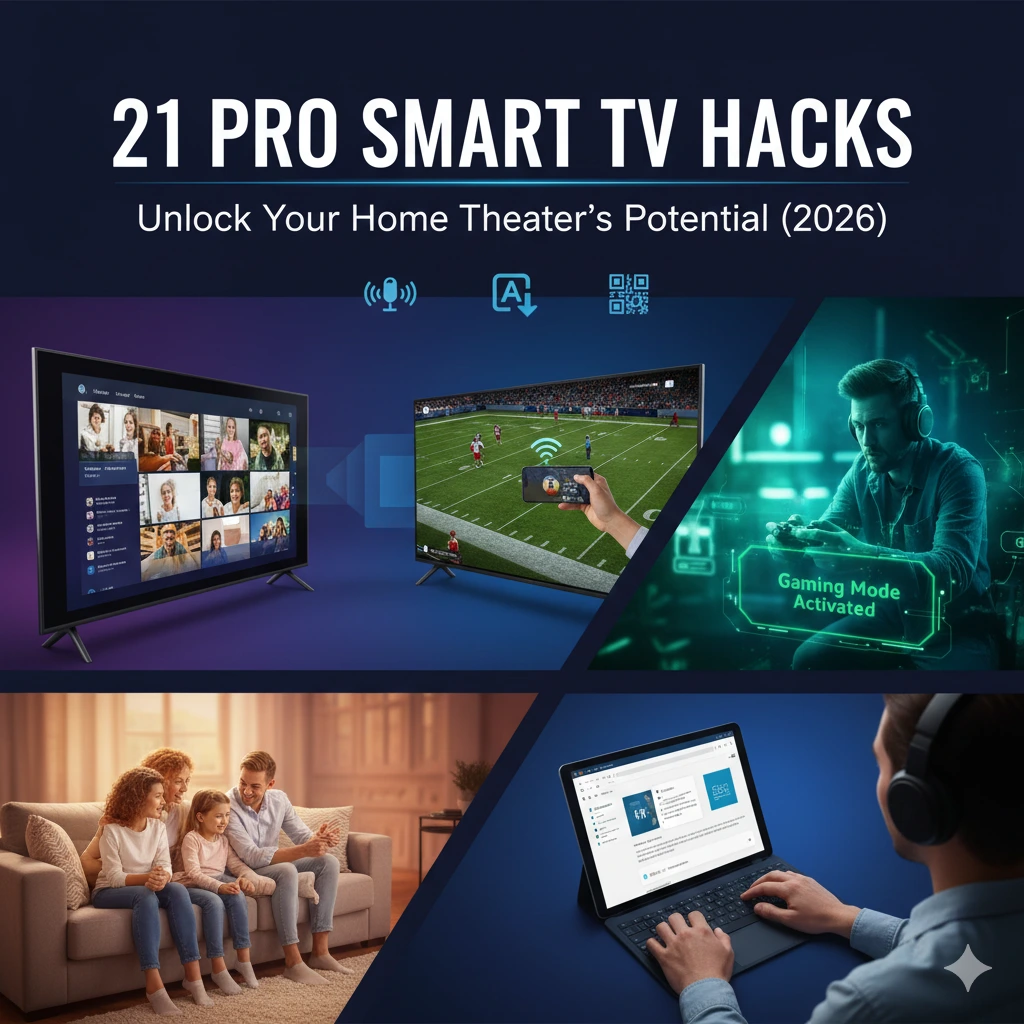
We have moved beyond simple apps and streaming. Today’s television has transformed into a sophisticated, AI-driven engine that powers your lifestyle, your home security, and even your physical health. If you are only using your remote to find Netflix, you are sitting on a goldmine of untapped potential.
Why “Smart” is No Longer Enough
In the early days, a Smart TV was just a screen with a built-in Roku or Fire Stick. Today, the architecture has changed. Modern TVs are now equipped with NPU (Neural Processing Unit) chips that allow the device to think, predict, and react to your environment.
The Evolution of Ambient Intelligence
One of the most impressive “more than smart” features is Ambient Intelligence. Your TV no longer sits as a dead black void on your wall. Through advanced light sensors and “pattern matching” technology, it can now camouflage itself against your wallpaper or act as a dynamic window. It can display real-time weather effects, high-resolution digital art, or even a live feed of a forest that changes its lighting based on the time of day in your actual room.
2. The Command Center for Your Entire Life
The TV has officially dethroned the smartphone as the primary hub for the Smart Home.
Seamless IoT Integration
Using protocols like Matter and Thread, your TV acts as a central nervous system.
Security: A notification pops up in the corner of your screen when your smart doorbell detects a package.
Utilities: You can monitor your solar panel output or your EV’s charging status via a dedicated dashboard on the big screen.
Atmosphere: When you hit “Play” on a movie, your TV can automatically signal your smart blinds to close and your lights to dim to 20% brightness.
3. A Revolution in Gaming and Fitness
You no longer need to buy $500 external boxes to turn your living room into an arcade or a gym. The hardware is now “under the hood.”
Gaming Without the Console-Gaming Mode Settings
Through high-bandwidth cloud gaming, your TV now offers performance that rivals a dedicated console. With 144Hz refresh rates and specialized “Game Modes,” you can play the latest AAA titles with nothing more than a Bluetooth controller. The TV handles the heavy lifting, processing 4K graphics at lightning speeds without a single wire in sight.
The AI Personal Trainer
Perhaps the most “human” evolution is the integration of Computer Vision. By connecting a small camera (or using the one built into the bezel), your TV becomes an interactive fitness coach. It doesn’t just show you a workout; it watches you.
Form Correction: It uses AI to track your joints, telling you if your squat is too shallow or if your yoga pose is misaligned.
Biometric Syncing: It pulls data from your Apple Watch or Oura Ring to adjust the workout intensity in real-time based on your actual fatigue levels.
4. Audio That Defies Physics
We used to say that thin TVs meant thin sound. That is no longer true. Modern high-end displays use Acoustic Surface Technology. Instead of traditional speakers, the entire screen vibrates to produce sound.
This creates a “Cinema at Home” experience where the dialogue literally comes from the actor’s mouth, and the sound of a helicopter follows the image across the glass. It is an immersive, 360-degree audio environment that eliminates the need for bulky speaker setups for the average user.
21 Genius Smart TV Hacks That’ll Make You Say “I Wish I Knew This Sooner”
Is your Smart TV just a fancy YouTube machine? Honestly, most of us are only using about 10% of what that big screen can actually do. It’s not just a display for movies anymore—it’s a hidden powerhouse sitting right in your living room.
From turning into a literal piece of art to acting as the brain of your entire home, your TV has some “secret identities” you probably haven’t discovered yet. Let’s dive into the coolest features and hidden hacks that will make your “Smart TV” feel like a genius.
Let’s be honest: Smart TVs and streaming sticks have completely flipped the script on how we spend our Friday nights.
The days of scrolling through 500 channels of “nothing to watch” are long gone. By now, most of us are experts at the basics—we know how to find our Netflix watchlist, skip the intro, and binge-watch a new series until the “Are you still watching?” prompt pops up.
But here’s the kicker: there is a whole host of awesome features hidden in your settings menu that most people never even realize exist. From “secret” service menus to clever AI automations that adjust your picture based on the time of day, your TV is hiding a world of possibilities.
1. The Console-Free Gamer: Turn Your Chromecast into a High-End Rig
Think you need a bulky $500 box to play the latest video games? Think again. One of the best “hidden” hacks for Chromecast and Google TV users is the ability to turn that tiny dongle into a full-blown gaming powerhouse.
By downloading cloud gaming apps like Xbox Cloud Gaming or NVIDIA GeForce NOW, you can stream blockbuster titles directly to your screen.
The TV handles the graphics in the cloud, so you don’t need a console taking up space on your shelf. Simply sync a Bluetooth controller to your TV, and you’re ready to play Halo or Cyberpunk in seconds. It’s the ultimate “stealth” gaming setup that most people don’t even realize they already own.

Steps to sync a PlayStation or Xbox controller to your Smart TV?
Getting your TV ready for gaming is surprisingly easy. You don’t need a degree in IT; you just need to know the “secret handshake” to get your controller into pairing mode.
Here is the step-by-step guide to turning your TV into a console.
Step 1: Put Your Controller in “Pairing Mode”
Your controller needs to be “searching” for your TV. Here is how you do it for the most popular brands:
PS5 DualSense: Press and hold the PS Button (middle) and the Create/Share Button (top left) at the same time. Hold them until the light bar starts pulsing blue.
Xbox Wireless Controller: Turn the controller on. Press and hold the small Pairing Button on the top edge (near the charging port) for about 3 seconds until the Xbox logo starts flashing rapidly.
Nintendo Switch Pro Controller: Hold the small Sync Button on the top edge until the green lights at the bottom start flashing back and forth.
Step 2: Find the Bluetooth Menu on Your TV
Every TV brand hides this in a slightly different spot. Here is the “click-path” for the big three:
For Samsung TVs:
Press the Home button and go to Settings (the gear icon).
Select All Settings > Connection.
Go to External Device Manager > Input Device Manager.
Select Bluetooth Device List. Your controller should pop up there!
For LG TVs:
Hold the Settings button on your remote.
Go to General > External Devices.
Select Connect Bluetooth Controller.
Hit Search, and your controller will appear on the list.
For Google TV / Chromecast:
Go to your Profile Icon (top right) and select Settings.
Scroll down to Remotes & Accessories.
Select Pair remote or accessory. Your TV will start scanning immediately.
Step 3: Pair and Play
Once you see “Wireless Controller” or “Xbox Controller” appear on your TV screen, select it with your standard TV remote. Hit Pair or Connect.
Pro Tip: Once connected, you can actually use the controller’s joystick and buttons to navigate your TV menus! No more looking for the remote when you want to switch from a game to Netflix.
What’s Next?
Now that your controller is connected, you just need the games. Most smart TVs now have the Xbox App or GeForce NOW built right into the app store.
Here is the quick-start guide to getting your Xbox library running on your TV in minutes.
1. Check Your Hardware
As of 2026, the Xbox app is widely available, but you’ll need one of these devices to run it:
Samsung Smart TVs: 2020 models and newer.
LG Smart TVs: 2021 models and newer (running webOS 6.0 or higher).
Amazon Fire TV: Fire Stick 4K (2nd Gen), Fire Stick 4K Max, or Fire TV Cube.
Google/Android TV: Most Sony, Hisense, and TCL models from the last few years.
2. Download the App
Go to your TV’s App Store (Samsung Gaming Hub, LG Content Store, or Google Play Store) and search for “Xbox.” Install it just like you would Netflix.
3. Choose Your Plan
When you open the app, you’ll need a subscription. Microsoft has simplified the tiers:
Game Pass Ultimate: This is the one you want. It includes Cloud Gaming, which is what allows the TV to play games without a console. It also gives you day-one access to huge titles like Call of Duty, Halo, and Forza.
Pro Tip: Look for “New Member” deals. Often you can get your first 14 days or first month for $1.
4. Sign In (The Easy Way)
Don’t bother typing your long email and password with the remote.
Open the app and select Sign In.
A QR Code will appear on your TV.
Scan it with your phone, log into your Microsoft account there, and your TV will automatically refresh and log you in.
5. Launch and Play
Once you’re in, you’ll see a massive wall of games.
Pick a game (look for the “Cloud” icon).
Hit Play.
Important: Since the game is streaming from a server, a wired Ethernet connection is better than Wi-Fi. If you must use Wi-Fi, make sure you are on a 5GHz band for the smoothest experience.
One Last “Pro Gamer” Tip
If you have Xbox Game Pass Ultimate, your “Save Data” follows you everywhere. If you start a game on your TV in the living room and later decide to lie in bed, you can open the Xbox app on your phone or tablet and pick up exactly where you left off.
2. Live Streams: Keep Your Finger on the Pulse (Without the Cable Bill)
If you’re still paying a massive monthly bill just to watch the evening news or big live events, you’re essentially paying for a service your Smart TV now offers for free. In 2026, “Live TV” has moved away from cable boxes and into the Live Tab of your TV’s home screen.
Most people don’t realize that their TV comes with a “secret” built-in cable service. Whether it’s Samsung TV Plus, LG Channels, or the Google TV Live tab, you have instant access to hundreds of live channels—news, sports, 24/7 classic movies, and weather—without ever entering a credit card number.
The “No-Subscription” Live Hacks:
The “Live” Shortcut: On most remotes, pressing the “Guide” button (even if you don’t have cable) will now open a digital grid of free streaming channels.
Local News for Free: Apps like NewsON or Haystack News aggregate your local hometown stations so you can watch the 6 PM news live, even if you’ve cut the cord.
The Global Window: Use the YouTube app to search for “Live News” or “Live Events.” Most major global networks (ABC, Sky News, Reuters) stream their broadcast feed 24/7 for free right there.
Pro Tip: Multiview 2.0
In 2026, high-end TVs allow you to “Split Screen.” You can have a live news stream running on the left while your favorite YouTube creator or a video game runs on the right. It’s the ultimate way to stay updated during breaking news without stopping your binge-watch.
Watching two things at once is the ultimate “power user” move. Whether you’re tracking a live news feed while watching a movie or keeping an eye on a sports game during a workout, here is how you unlock Multiview or Picture-in-Picture (PiP) on the most popular TV brands for 2026.
1. Samsung Smart TVs (2020–2026)
Samsung is the leader in this space with their Multi View feature. Higher-end models (like the Neo QLED or OLED) can even handle up to 4 screens at once.
How to start: Press the Home button > Settings > Multi View.
The Shortcut: On newer remotes, there is a dedicated Multi View button (looks like two overlapping rectangles).
Customizing: You can choose a “Preset” (like Exercise or Sports) or select Add View to pick your own sources.
Audio Trick: Select a screen and press the Select button to choose Sound Distribution. You can actually have audio from both screens playing at once, or send one screen’s audio to your Bluetooth headphones.
2. LG Smart TVs (webOS 6.0 & Higher)
LG calls this feature Multi-View, and it’s been significantly upgraded in their recent 2024–2026 models.
How to start: Press the Home button on your Magic Remote. Look for the Multi-View icon in the app row (or press the Settings button and find it in the Quick Menu).
Pick your style: * Side-by-Side: Two equal-sized windows.
Picture-in-Picture: One small floating window over a full-screen app.
The Hack: You can often pair a “Live TV” feed with the YouTube app. It’s perfect for watching a live news stream while following a tutorial or music video.
3. Sony & Google TVs (2025–2026)
Google TVs use a more app-based approach to Picture-in-Picture.
How to start: While watching a video in an app like YouTube or VLC, press the Home button on your remote. The video will automatically shrink into a small window in the corner.
Twin Picture (Select Models): On many Sony Bravia models, press the Action Menu or Options button and select Twin Picture. This allows you to view an HDMI input (like a PC or Console) and a TV program at the same time.
Moving the window: Use the directional pad on your remote to “focus” on the small window, then hold the Select button to drag it to a different corner.
4. The “YouTube TV” Cheat Code
If you use the YouTube TV app (the subscription service), they have a built-in Multiview that works on any smart TV, regardless of the brand.
Open the YouTube TV app.
Go to the Home or Live tab.
Look for “Watch in Multiview.”
You can select from pre-set combinations of News, Sports, or Business channels to watch up to four live feeds simultaneously.
Important: The “Bandwidth” Warning
Streaming two or four high-definition feeds at once is heavy on your Wi-Fi. If you notice the screens buffering or looking blurry:
Try to use an Ethernet cable instead of Wi-Fi.
Ensure your internet speed is at least 25-50 Mbps for a smooth experience.
Unlocking the Secret Service Menu is like finding the “God Mode” for your TV. It’s a hidden interface designed for technicians to fix deep-level software bugs, check exactly how many hours the screen has been on, or disable annoying “Hospitality/Hotel Mode” restrictions.
⚠️ The Golden Rule: Look, But Be Careful
Before you touch anything in these menus, take a photo of the original settings. One wrong click in a service menu can “brick” your TV (make it unbootable), and since this menu is for technicians, a factory reset might not always fix it.
1. Samsung TVs (2020–2026 Models)
Samsung has a few different codes depending on which remote you have. The TV usually needs to be OFF (Standby) before you start.
The Classic Code: (Press these quickly)
Info→Settings(orMenu) →Mute→Power.The Modern Code:
Mute→1→8→2→Power.For “Hospitality” Lockouts: If your TV is stuck in a hotel-style menu, turn it ON and press:
Mute→1→1→9→Enter.To Exit: Simply turn the TV off.
2. LG Smart TVs (webOS)
LG is a bit more protective. If you have the “Magic Remote” (the one with the scroll wheel), some codes might not work, and you might need a cheap $10 “LG Service Remote” from Amazon. However, try these first:
The Button Hold: Press and hold the MENU button (or Settings/Gear icon) on both the remote and the TV panel simultaneously for about 5–10 seconds.
The Password: If a box pops up asking for a code, try:
0413,0000, or7777.The Quick Hack (Magic Remote): Press the Mute button 3 times fast. This opens a “Secret Menu” where you can disable the LG logo on startup or reset AV settings.
To Exit: Press Back or turn the TV off.
3. Sony Bravia (Google TV / Android TV)
Sony’s menu is famous for showing “Panel Hours”—great for checking if a “new” TV was actually a store floor model. Start with the TV OFF.
The Standard Code:
Display(ori+) →5→Volume Up→Power.The New Remote Code (No numbers):
Home→Select (Center button)→Volume Up→Power.To Exit: Hold the Power button on the remote until the TV reboots.
4. Google TV / Android TV (TCL, Hisense, etc.)
Since these run on Android, they have a “Developer Mode” similar to a smartphone.
Go to Settings > System > About.
Find the Android TV OS Build number.
Click it 7 times until it says “You are now a developer!”
Go back to the System menu, and you’ll see Developer Options. This lets you speed up animations (making the TV feel faster) or stay awake while debugging.
What can you actually do in here?
Panel Life: See exactly how many hours your screen has been used.
Disable PWM: Some people find that “flicker” (PWM) gives them headaches. In the Advanced Samsung menu, you can sometimes disable this for a smoother image.
Audio Offset: If your sound is slightly out of sync with the actors’ lips and the regular menu can’t fix it, you can fine-tune it here.
Usually you can find TV Model nos. sticker on the back.
3. Full Control: Say Goodbye to Your Remote (Seriously)
We’ve all been there: the movie is about to start, but the remote has vanished into the couch cushions, or the batteries decided to quit right at the climax. In 2026, hunting for a plastic clicker feels like using a rotary phone. Your Smart TV has several built-in “hacks” that let you ditch the remote entirely.
The Phone App Power-Up
Every major brand has a dedicated app (like Samsung SmartThings, LG ThinQ, or Google Home) that turns your smartphone into a super-remote.
Why it’s better: You get a full QWERTY keyboard. No more clicking individual letters on an on-screen keyboard for ten minutes just to search for “Interstellar.”
The “Invisible” Trackpad: Most apps turn your phone screen into a laptop-style touchpad, making it 10x faster to navigate web browsers or complex menus.
The “HDMI-CEC” Magic Trick
This is the most underrated feature in home tech. HDMI-CEC (Consumer Electronics Control) allows your devices to “talk” to each other through the HDMI cable.
How it works: When you turn on your PlayStation or Apple TV, your TV automatically turns on and switches to the correct input.
One Remote to Rule Them All: You can usually use your TV remote to control your soundbar and streaming box without any setup.
Check your settings: Look for names like Anynet+ (Samsung), SimpLink (LG), or Bravia Sync (Sony) and toggle them to ON.
Hands-Free Voice Commands
If you have a TV from 2024 or newer, you probably don’t even need to touch a button to speak.
“Hey Google, Dim the Lights”: If your TV is linked to your smart home, it can act as a giant smart speaker.
“Turn off the TV in 30 minutes”: Perfect for when you’re already tucked into bed and don’t want to reach for the nightstand.
Quick Setup Table: How to Enable Remote-Free Control
| Brand | Secret Menu Name | Recommended App |
| Samsung | Anynet+ | SmartThings |
| LG | SimpLink | LG ThinQ |
| Sony | Bravia Sync | Google Home / Sony SideView |
| Vizio | CEC | Vizio Mobile |
4. Silent Night: The Genius Mobile Audio Hack
We’ve all been there: it’s midnight, you’re dying to watch an action movie, but the rest of the house is fast asleep. You don’t want to be that person waking everyone up with a loud explosion.
Most people think the only solution is a 20-foot headphone cable or expensive wireless TV headphones. But there’s a much cooler “hidden” hack. You can actually beam the TV’s audio directly to your smartphone and listen through your regular earbuds.
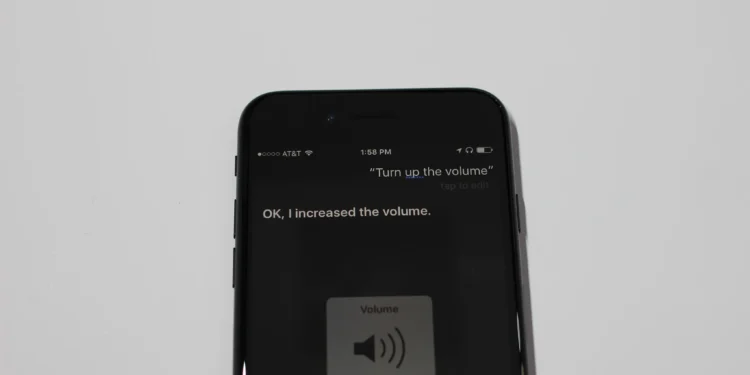
How to Pull Off the “Private Listening” Hack:
Different brands have different names for this, but the result is the same: silence for the room, full volume for your ears.
Roku Users: This is the gold standard. Open the Roku App on your phone, tap the Remote icon, and hit the Headphones icon. The TV will instantly mute, and the sound will start coming out of your phone’s jack (or your Bluetooth AirPods/Buds).
Samsung (SmartThings): Open the SmartThings app, select your TV, and look for “Play TV sound on phone.” This is perfect for late-night gaming or catching the news while you’re in the kitchen making a snack.
LG (ThinQ): Use the LG ThinQ app on your mobile. Select your TV and look for “Mobile Sound Sync.” It routes the audio through your phone so you can walk around the house without missing a line of dialogue.
Vizio: The Vizio Mobile app has a “Private Listening” button right on its virtual remote interface.
The “Tunity” Trick (For Muted TVs Anywhere)
If you’re at a noisy gym or a sports bar with a muted TV, download the Tunity app. You just point your phone camera at the screen, and the app “scans” what’s playing and streams the live audio to your headphones. It feels like magic every single time.
Quick Comparison: Which App Do You Need?
| TV Brand | App Name | Feature Name |
| Roku / TCL | Roku Mobile | Private Listening |
| Samsung | SmartThings | Play TV Sound on Phone |
| LG | LG ThinQ | Mobile Sound Sync |
| Vizio | Vizio Mobile | Private Listening |
5. Better Filters: Get the Most Out of Netflix (The “Secret Code” Hack)
We’ve all spent 45 minutes scrolling through Netflix only to end up watching the same show for the third time. It feels like Netflix only shows you the same 20 titles over and over. That’s because the TV app’s interface is designed to push “trending” hits, hiding thousands of niche movies and shows deep in the basement of its library.
In 2026, the real pros use Secret Category Codes to bypass the algorithm and find exactly what they’re in the mood for.
How to Use the Codes on Your TV
While you can’t “type” these codes directly into a specific “code box,” there is a simple workaround. Open the Search function (the magnifying glass) on your Netflix TV app and type the specific ID number instead of a title.
Try these fan-favorite codes:
90-Minute Movies (81466194): Perfect for when you want a full story but need to be in bed by 11 PM.
Deep Sea Horror (45028): For when you want something creepy involving the ocean.
K-Dramas (67879): The fastest way to see the full library of Korean hits.
Classic Westerns (47465): Jump straight to the golden age of cowboys.
Supernatural Thrillers (11140): For that “Stranger Things” vibe.
The “Higher Quality” Hack
Did you know your TV might be “throttling” your Netflix quality to save data? If your 4K TV looks a bit blurry, it’s usually not your internet—it’s a hidden setting.
Log into Netflix on a web browser (on your phone or laptop).
Go to Account > Profiles > Playback Settings.
Change “Data usage per screen” from Auto to High.
ADVERTISEMENTThis forces Netflix to always stream in the highest resolution your TV can handle.
Kill the “Soap Opera Effect”
Netflix actually hates the way your TV looks out of the box. Most TVs use “Motion Smoothing” which makes movies look like cheap daytime talk shows. Look in your TV’s Picture Settings for Filmmaker Mode. Netflix collaborated with top directors to create this setting; it turns off all the “fake” processing and shows the movie exactly how the director intended it to look.
Cheat Sheet: Popular Netflix Hidden Codes
| Category | Code |
| Action Comedies | 43040 |
| True Crime Documentaries | 9875 |
| Romantic Comedies | 5475 |
| Sci-Fi & Fantasy | 1492 |
| Disney Movies | 67673 |
6. Clear the Clutter: How to Hide Apps on Apple TV
If your Apple TV home screen is starting to look like a messy junk drawer, you aren’t alone. Between the apps you actually use and the “pre-installed” ones Apple insists on keeping there, it can get crowded fast.
In 2026, with the latest tvOS 26 updates, Apple has finally given users more ways to “bury” the apps they don’t want to see—including those redundant iTunes apps that have been hanging around for years. Here is how you can clean up your screen like a pro.
The “New” Way: Deep Hiding (tvOS 26)
With the latest software update, Apple finally added a dedicated “Hide” toggle for system apps that used to be permanent eyesores.
Open the Settings app on your Apple TV.
Go to Apps and select iTunes Movies and TV Shows (or other system apps like Apple Music Sing).
Look for the Home Screen section.
Change the setting from “Show” to “Hide.” The icon will vanish instantly from your main grid.
The “Classic” Way: The Junk Folder
For third-party apps you don’t want to delete but also don’t want to look at, the “Crap Folder” is your best friend.
Highlight the app you want to hide.
Hold down the Center Button on your Siri Remote until the app starts to jiggle.
Press the Play/Pause button to open the secret “Options” menu.
Select Move to > New Folder (you can name it “Utilities” or just “.” to keep it subtle).
Drag all your unwanted apps into this folder and move the folder to the very bottom of your screen. Out of sight, out of mind.
The “Restrictions” Trick
If you want to hide apps so they are protected by a password (great for parental controls or “hiding” a specific streaming service), use the Restrictions menu.
Go to Settings > General > Restrictions.
Turn them ON and set a 4-digit PIN.
Under the “Apps” section, you can choose to hide apps based on age ratings (e.g., “Don’t Allow Apps 17+”). Any app that fits that rating will completely disappear from the home screen until you turn the restriction off.
7. Don’t Just “Plug and Play”: The 5-Minute Setup That Saves Your Picture
We get it. You just bought a beautiful new 65-inch 4K TV, you’ve unboxed it, and you’re dying to see that first movie. The temptation to just plug it in and start watching is huge. But here’s the truth: the “Out of the Box” settings on most TVs are terrible.
Manufacturers set TVs to “Store Mode” or “Vivid Mode” because they want the screen to look bright and punchy under the harsh fluorescent lights of a Best Buy or Costco. In your living room, those same settings make people look like they have neon-orange skin and turn every movie into a blurry, hyper-realistic mess.
The “First Hour” Checklist
Before you get comfortable, spend five minutes tweaking these three areas to get the picture you actually paid for:
Turn Off “Motion Smoothing”: This is the biggest offender. It’s often called TruMotion, Motion Flow, or Auto Motion Plus. It tries to add “fake” frames to make movement look smoother, but it results in the “Soap Opera Effect,” making a $200 million blockbuster look like a cheap daytime drama. Turn it off immediately.
Switch to “Filmmaker Mode” or “Movie Mode”: These presets are designed to match the color standards used in Hollywood. They provide the most accurate colors and the “warmest” (most natural) white levels. If it looks a little “yellow” at first, give your eyes 10 minutes to adjust—you’ll never go back.
Check Your HDMI Deep Color: If you have a PS5, Xbox, or 4K Blu-ray player, your TV might not be automatically “opening the pipe” for the best signal. Look in your External Device settings for “HDMI Ultra HD Deep Color” or “Enhanced Format” and make sure it’s toggled ON for the port you’re using.
The Audio “Silent” Killer
Most people forget that “Smart” TVs also try to be “Smart” with sound. Many TVs have an “Auto Volume” or “Night Mode” turned on by default. While great for late nights, it crushes the “dynamic range” of your speakers, making the epic music in a movie sound flat and weak. If you want the full cinema experience, turn these “volume leveling” features off.
Quick Settings Calibration Table
| Setting | Factory Default | Change To | Result |
| Picture Mode | Vivid / Standard | Filmmaker / Cinema | Accurate, natural colors. |
| Motion Smoothing | High / Smooth | Off / Real Cinema | Removes the “Soap Opera” look. |
| Color Temperature | Cool (Blue) | Warm / Neutral | Better skin tones; less eye strain. |
| Energy Saving | On | Off | Increases brightness and contrast. |
“Pro Calibration” settings for your specific TV brand
To get that “perfect” picture, you have to move past the default settings. Most TVs ship in an energy-saving or “Vivid” mode that makes the screen look blue and artificial.
Here are the specific, pro-level settings for the major brands in 2026.
1. Samsung (Neo QLED & OLED)
Samsung TVs are famous for being incredibly bright, but they can often look a bit “over-processed.”
Picture Mode: Filmmaker Mode (for the most accurate colors) or Movie.
Brightness: Set to 50 for HDR; for SDR (normal TV), adjust between 25-35 depending on your room.
Expert Settings: * Color Tone: Change to Warm2 (it might look yellow at first, but this is the industry standard).
Picture Clarity: Set to Off to kill the “Soap Opera Effect.”
Peak Brightness: Set to High (especially for HDR content).
Power & Energy Saving: Turn OFF “Brightness Optimization” and “Energy Saving Solution.”
2. LG (C-Series & G-Series OLED)
LG OLEDs are the kings of contrast. You want to protect those deep blacks while keeping the highlights punchy.
Picture Mode: Filmmaker Mode (Dark Room) or Cinema Home (Bright Room).
OLED Pixel Brightness: Set to 100 for HDR/Dolby Vision. For night watching, drop it to 80.
Clarity: * TruMotion: Set to Off or User Selection (De-judder at 1 or 2 if you hate 24p stutter).
Advanced Settings: * Reduce Blue Light: Off.
Dynamic Tone Mapping: On (This helps the TV adjust brightness frame-by-frame).
General: Turn OFF “Energy Saving Step.”
3. Sony (Bravia 7, 8, & 9)
Sony has the best processing in the game. You want to let their “XR Processor” do the work without adding fake sharpening.
Picture Mode: Professional (formerly called Custom). This is Sony’s most “pure” mode.
Brightness: Max for HDR. For SDR, 15-20 is usually plenty for a dark room.
Motion: * Motionflow: Set to Off or Custom (Smoothness: Min, Clearness: Min).
CineMotion: Auto.
Color: * Color Temperature: Expert 1.
Live Color: Off (keeping it on makes colors look neon and fake).
Eco Dashboard: Turn OFF the “Light Sensor” if your brightness keeps jumping around.
4. TCL & Hisense (Mini-LED)
These TVs are “brightness monsters.” The goal here is to control that power so it doesn’t wash out the image.
Picture Mode: Movie or Filmmaker Mode.
Local Dimming: Always set to High. This is the “secret sauce” that makes these TVs look expensive.
Brightness/Backlight: 100 for HDR; 60-80 for SDR in a bright room.
Contrast: 90-95 (Don’t go to 100 or you’ll lose detail in bright clouds/snow).
Color Temperature: Warm 2.
The “Golden Rule” for All Brands
If you only change one thing, make it this: Switch to Filmmaker Mode and turn off Motion Smoothing. It will feel “dark” and “red” for the first 10 minutes because your eyes are used to the harsh blue light of the factory settings. Stick with it for one full movie, and you’ll realize you can see way more detail in the shadows and skin tones than you ever could before.
Find the best settings for a specific gaming console (PS5 or Xbox Series X)
To get the most out of your PS5 or Xbox Series X, you need to treat your TV like a high-performance computer monitor. If you just plug the console in and play, you’re likely experiencing “Input Lag” (the delay between pressing a button and seeing the action) and washed-out colors.
In 2026, modern TVs have “Auto Low Latency Mode” (ALLM), but you still need to dial in these settings to get that competitive edge.
1. The “Essential” Console Settings (Do this first!)
Before touching the TV, make sure your console is actually sending the best signal:
PS5: Go to Settings > Screen and Video > Video Output. Set 120Hz Output to “Automatic” and VRR (Variable Refresh Rate) to “Automatic.”
Xbox Series X: Go to Settings > General > TV & Display Options. Under “Advanced,” check Allow 4K, Allow HDR10, and Allow Variable Refresh Rate.
2. TV Brand-Specific Gaming Hacks
Samsung (The Gaming Hub)
Samsung TVs have a dedicated “Game Bar” that pops up when you hold the Play/Pause button on your remote.
Game Mode: Set to ON (not Auto).
Input Lag: Set to Fastest.
Game Motion Plus: Turn this OFF. While it makes things look smooth, it adds lag. For competitive shooters like Call of Duty, you want zero processing.
HDR Tone Mapping: Switch to HGiG. This tells the TV not to mess with the brightness and let the console handle it.
LG (The OLED King)
LG’s “Game Optimizer” menu is the gold standard for 2026 gaming.
Game Genre: Set to FPS (for speed) or RPG (for better colors).
OLED Care: Make sure “Logo Brightness” is set to Low or Medium to prevent HUD elements (like mini-maps) from causing burn-in.
Prevent Input Delay: Set to Boost. This drops the lag to sub-10ms, which is pro-level speed.
Black Stabilizer: If you’re playing a dark game and can’t see enemies in corners, bump this up to 13.
Sony (Perfect for PS5)
Sony TVs have a “secret” handshake with the PS5 called Auto HDR Tone Mapping.
Picture Mode: Switch to Game.
Motionflow: Make sure this is OFF.
HDMI Signal Format: This is the big one. Go to Settings > Channels & Inputs > External Inputs. Change your HDMI port to Enhanced Format (VRR). If you don’t do this, the TV won’t allow 120Hz gaming.
3. The “HGiG” Secret (Fixing Your HDR)
Have you ever noticed that in games, the sky is so bright it’s just a white blob? That’s because of poor Tone Mapping.
Find the HDR setting on your TV and look for HGiG (HDR Gaming Interest Group).
Turn it ON.
Now, go into your Console’s settings and run the “HDR Calibration” tool again.
Follow the prompts. Because HGiG is on, the console and TV are now “speaking the same language,” and you’ll see detail in the clouds and sun that wasn’t there before.
Quick Comparison: Gaming Features to Look For
| Feature | What it does | Should it be ON? |
| VRR | Stops “Screen Tearing” when the action gets heavy. | YES |
| ALLM | Automatically switches to Game Mode when you play. | YES |
| 120Hz | Makes movement look 2x smoother than standard TV. | YES |
| Motion Blur Reduction | Tries to sharpen movement but usually dims the screen. | OFF |
8. Your Personal Movie Cloud: Stream Your Own Library Anywhere
Streaming services are great until your favorite movie disappears because of a licensing deal. If you still have a box of Blu-rays or DVDs gathering dust, you can actually create your own “Private Netflix.”
In 2026, you don’t need to keep a noisy computer running 24/7 to do this. You can upload your digital movie files to a cloud service or a home server and stream them directly to your Smart TV app with full poster art, subtitles, and “resume play” features.
The “DIY Netflix” Workflow
Digitize (Rip): Use a computer with a Blu-ray drive and free software like MakeMKV to turn your physical discs into digital files.
The Cloud Hub: Upload those files to a service like Google Drive, Dropbox, or OneDrive.
The Magic App: Download an app like Plex, Jellyfin, or Infuse on your Smart TV. These apps scan your cloud folders and turn a list of boring files into a beautiful, searchable library.
Why “Plex” is the 2026 Gold Standard
Plex is the most popular way to do this because it’s a “set it and forget it” solution.
Remote Access: You can start a movie on your living room TV and finish it on your phone while traveling.
Auto-Organization: You don’t have to name files perfectly; Plex automatically finds the movie poster, cast list, and even the “Skip Intro” markers for TV shows.
Free Live TV: As a bonus, Plex gives you over 300+ free live channels alongside your personal movie collection.
The “Vudu” (Fandango) Shortcut
If ripping discs sounds like too much work, check out the “Disc to Digital” feature in the Fandango at Home (formerly Vudu) app. You simply scan the barcode on your physical Blu-ray case with your phone, pay a small $2 conversion fee, and the movie is added to your digital cloud library instantly.
Which Private Library App is Right for You?
| App | Best For… | Cost |
| Plex | Beginners who want a “Netflix” experience. | Free (Basic) / Paid (Pro) |
| Jellyfin | Tech-savvy users who want 100% privacy and no fees. | Completely Free |
| Infuse | Apple TV users who want the best possible 4K picture quality. | Subscription |
| Kodi | Hardcore customizers who want to tweak every menu. | Completely Free |
9. Control it with a Controller: The Remote You Can’t Lose
If you own an Xbox One or PS4, you already have one of the best smart TV remotes ever made sitting on your coffee table. While we usually think of these controllers just for gaming, modern Smart TVs (especially Samsung, LG, and Sony models from 2024–2026) allow you to use them to navigate the entire TV interface.
Why would you do this? Because game controllers are designed for ergonomics and speed. They never lag, they feel better in the hand, and—let’s be honest—they’re much harder to lose than a slim TV remote.
The “Master Navigator” Shortcuts
Once paired via Bluetooth (the same way we did in Hack #1), your controller becomes a high-speed navigation tool:
The Joysticks/D-Pad: Zip through Netflix or YouTube menus much faster than a standard remote.
The “A” (Xbox) or “Cross” (PS4) Button: Your primary “Select” or “Enter” key.
The “B” (Xbox) or “Circle” (PS4) Button: Your “Back” or “Exit” key.
The Secret Volume Hack: On many Samsung and Sony TVs, the Right Analog Stick acts as a volume slider (Up/Down) and channel flipper (Left/Right).
The “Home” Shortcut: Pressing the Xbox/PS Button will almost always take you straight back to the TV’s main dashboard, regardless of what app you’re in.
Better Than a Remote for “Typing”
One of the most annoying parts of a Smart TV is typing in your email or searching for a movie title. With a controller, you can use two hands to fly across the on-screen keyboard, or in some apps, use the controller’s triggers to jump between letters.
Multi-Device Magic
If you have a streaming stick (like a Chromecast or Fire Stick) plugged into an older TV, the controller hack still works! You can pair your PS4 controller directly to the stick and use it to control both the streaming interface and the volume of your TV (via HDMI-CEC). It’s the ultimate “one-device” solution for your bedroom or dorm room setup.
Quick Guide: Controller Navigation Keys
| Action | Xbox One Controller | PS4 DualShock |
| Select / OK | A Button | Cross (X) |
| Go Back | B Button | Circle |
| Main Menu / Home | Xbox Logo | PS Button |
| Scroll / Navigate | Left Stick / D-Pad | Left Stick / D-Pad |
| Volume / Channel | Right Stick (Some models) | Right Stick (Some models) |
10. The Ultimate “Where to Watch” Hack: Use Google Home as a Streaming Detective
We’ve all been there: you finally decide to watch that one specific movie, but you have no idea if it’s on Netflix, Max, Hulu, or Disney+. Instead of opening five different apps and typing the title into five different search bars, you can use Google Home (or the Google TV app) to do the detective work for you in seconds.
In 2026, this “universal search” has become the smartest way to navigate the streaming wars.
How to Use the “Where to Watch” Hack:
You don’t even need to be in front of your TV to do this.
Ask your Smart Speaker: Just say, “Hey Google, where is ‘The Dark Knight’ streaming?” Google will scan every service you’re subscribed to and tell you exactly which app has it.
The “One-Tap” Launch: If you have a Chromecast or Google TV, you can follow that up with, “Hey Google, play it on the Living Room TV.” The TV will turn on, open the correct app, and start the movie—all without you touching a remote.
Use the Google TV App: If you’re on the go, open the Google TV app on your phone and search for a movie. It will show a “Ways to Watch” card, listing every platform where the title is available to stream, rent, or buy.
Manage Your Services for Better Results
To make this hack truly “smart,” you need to tell Google which services you actually pay for so it doesn’t suggest apps you don’t have.
Open the Google Home or Google TV app.
Tap your Profile Picture > Manage Services.
Toggle on the services you subscribe to (Netflix, Prime Video, etc.).
Now, when you search, Google will prioritize the “Free” options included in your subscriptions over rental options.
The “Watchlist” Sync
One of the best hidden features of this hack is the Universal Watchlist. If you’re browsing the web on your phone and see a movie you like, just search for it on Google and tap the “Watchlist” icon. That movie will be waiting for you in the “Library” tab of your Smart TV when you get home, regardless of which streaming service it lives on.
Google Assistant Quick Commands
| If you want to… | Say this to your Google Home… |
| Find a movie | “Where can I watch [Movie Name]?” |
| Find a genre | “Show me some 90-minute action movies.” |
| Find an actor | “What movies with Florence Pugh are on Netflix?” |
| Switch inputs | “Switch to HDMI 2 on the TV.” |
11. Digital Resurrection: Watch Your Old DVD Library on Your New System
If you have a shelf full of old DVDs and Blu-rays, they aren’t obsolete—they’re just “offline.” In 2026, you don’t need a bulky, dusty player to enjoy your favorite physical media. You can digitize your entire collection and turn it into a private, high-definition streaming service that lives right on your TV.
By converting your discs into digital files, you not only protect the originals from scratches but also unlock “Smart” features like instant searching, movie posters, and the ability to resume where you left off.
The “Media Server” Masterclass
The best way to do this is by setting up a Media Server. This sounds technical, but it’s actually a “set it and forget it” process:
The Rip: Use a free program like MakeMKV on your computer to copy the exact data from your disc into a high-quality video file.
The Polish: If the files are too big, use Handbrake to shrink them down without losing quality (use the “1080p Surround” preset for the best balance).
The Host: Install Plex or Jellyfin on your computer. Point the app to your “Movies” folder, and it will automatically download the posters, cast lists, and trailers.
The Play: Download the corresponding app on your Smart TV. Your personal library will now look and feel exactly like a professional streaming service—no discs required.
The USB “Plug-and-Play” Shortcut
Don’t want to set up a server? Almost every Smart TV has a hidden USB port on the back or side.
Simply drag your digital movie files onto a USB Flash Drive or External Hard Drive.
Plug it into the TV.
Open the TV’s built-in Media Player or File Browser app.
Your movies will play directly from the drive in full 4K or 1080p quality, often looking better than Netflix because they aren’t compressed by your internet connection.
Plex vs. Jellyfin: Which One Should You Pick?
| Feature | Plex | Jellyfin |
| Ease of Use | 10/10 (Plug and play) | 7/10 (Requires some setup) |
| Cost | Free (Basic) / Paid (Pro features) | 100% Free / Open Source |
| Interface | Very polished, looks like Netflix. | Clean, but slightly more basic. |
| Remote Access | Works instantly on your phone. | Requires manual network setup. |
12. Business Time: The Laptop-Free Presentation Hack
Walking into a conference room with just a smartphone and nailing a presentation feels like living in the future. In 2026, you no longer need to fumble with dongles or beg for a laptop charger. Your Smart TV is a fully capable business monitor that can pull your slides directly from your pocket.
The “Wireless Desktop” Mode (Samsung DeX)
If you have a Samsung Galaxy device, you have a secret superpower called Wireless DeX. It doesn’t just mirror your phone; it turns your TV into a full desktop computer.
Swipe down your phone’s Quick Panel and tap DeX.
Select your TV from the list.
Your TV now looks like a Windows PC. You can open PowerPoint or Google Slides, and your phone screen transforms into a giant touchpad to control the cursor. It’s the ultimate professional “flex.”
The “One-Tap” Screen Mirror
For a quick demo or a PDF walkthrough, use the native mirroring built into your OS:
iPhone (AirPlay): Open your presentation, swipe down to the Control Center, and tap Screen Mirroring. Your slides will appear instantly in 4K.
Android (Smart View / Cast): Swipe down and tap Cast or Smart View. Select your TV, and your entire phone screen is projected. Pro Tip: Turn on “Do Not Disturb” first so your private texts don’t pop up in the middle of a board meeting!
The “Direct Cloud” App Hack
Most modern TVs (Samsung, LG, and Sony) now allow you to download Microsoft 365 or Google Workspace apps directly onto the TV.
Sign into your account on the TV app.
Use your phone as a Bluetooth remote.
You can pull your presentation straight from the cloud without “casting” anything, which eliminates lag and keeps your phone free for taking notes.
Presentation Pro-Tips for 2026
| Feature | How to Use It | Why It Wins |
| Speaker Notes | Use “Presenter View” in the mobile app. | You see the notes on your phone; they see the slides on the TV. |
| Digital Laser Pointer | Hold your finger on the slide in the mobile app. | A red dot appears on the TV screen to highlight key data. |
| Aspect Ratio Fix | Check TV settings for “Fit to Screen.” | Ensures your slides aren’t cut off at the edges. |
| Video Calls | Use the TV’s native Google Meet app. | Use your phone as the webcam while the clients appear life-sized on the TV. |
13. Closing Quickly: The Fast Way to Put Your Apple TV to Sleep
In 2026, the Apple TV is faster than ever, but navigating through layers of settings just to turn it off still feels like a chore. Most people wait for the “Auto-Sleep” timer to kick in, but that wastes power and keeps your TV glowing in a dark room.
Here are the fastest shortcuts to shut everything down in exactly two seconds.
The Remote “Power Move”
If you have the modern Siri Remote (the silver one with the black clickpad), you have a dedicated Power button in the top right.
The Instant Sleep: Don’t just tap it—press and hold the Power button. If your TV supports HDMI-CEC (which we enabled in Hack #7), this single hold will put your Apple TV to sleep and turn off your television and soundbar simultaneously.
The Control Center Shortcut
If you’re using an older remote or just prefer the software route, the Control Center is your best friend.
Press and hold the TV/Home button (the one that looks like a monitor) for two seconds.
A side menu (the Control Center) will slide out from the right.
The very first icon is usually Power. Click it, and select Sleep.
Pro Tip: In tvOS 26, this menu also houses your Sleep Timer. If you’re prone to falling asleep mid-movie, you can set a 15, 30, or 60-minute timer right here so the TV shuts itself off later.
The iPhone “Lock Screen” Hack
You don’t even need the remote to be in the same room to turn off the TV.
If you have the Apple TV Remote enabled in your iPhone Control Center, you can tap the Power icon at the top of the remote interface on your phone.
The “Siri” Method: Just say to your phone or your Apple Watch, “Hey Siri, turn off the Living Room TV.” It’s the ultimate way to shut down the house when you’re already halfway up the stairs to bed.
Apple TV Power States: What’s the Difference?
| State | How to Trigger | What Happens? |
| Sleep | Hold Power / Control Center | TV turns off; apps pause; updates download in background. |
| Sleep Timer | Control Center > Timer | TV waits for the countdown, then enters Sleep mode. |
| Full Restart | Settings > System > Restart | Clears the cache; fixes “glitchy” apps or slow menus. |
14. Screensaver of Your Life: Turn Your TV into a Giant Digital Frame
When your TV is off, it’s just a “black hole” on your wall. But in 2026, you can turn that dead space into an ever-updating gallery of your own memories. Whether you have a Samsung, LG, or a Google TV, your photos can now look like high-end art that updates automatically.
The Samsung “Daily Board” & Google Photos Hack
As of March 2026, Samsung and Google have launched a massive partnership. If you have a Samsung TV, you no longer need to “cast” from your phone.
The “Memories” Feature: You can link your Google Photos account directly within the Samsung Daily+ hub. The TV will use AI to curate your best family photos and “relive” them as a cinematic slideshow.
The AI Upscale: Older, low-res digital photos are automatically sharpened by the TV’s processor so they don’t look blurry on a giant 65-inch screen.
Google TV & Android TV (Sony, TCL, Hisense)
If your TV runs on Google’s OS, the “Ambient Mode” is your best friend.
Open the Google Home app on your phone.
Select your TV and go to Settings > Ambient Mode.
Choose Google Photos and select specific albums (like “Family” or “Vacation”).
Pro Tip: Turn on “Personal Photo Curation.” Google will automatically hide blurry photos, receipts, or screenshots, only showing the “good” shots on your TV.
Apple TV (The iCloud Method)
For the Apple ecosystem, your screensaver can be pulled directly from your Shared Albums.
Go to Settings > General > Screen Saver > Type and select My Photos.
Choose Memories or a specific album.
The “Portraits” Style: If you have an Apple TV 4K, choose the “Portraits” style. It uses the depth data from your iPhone photos to separate the person from the background, creating a professional, layered look with a stylish clock overlay.
The “No Internet” USB Method
If you’re worried about privacy or don’t use cloud storage, every Smart TV has a USB port.
Load your photos onto a USB drive and plug it in.
Open the Gallery or Media Player app on the TV.
Select Slideshow. You can usually set the “Transition Speed” and “Shuffle” directly from the remote.
Digital Frame Comparison (2026 Edition)
| TV Brand | Best Feature | How to Setup |
| Samsung | AI Memories | Connect via Samsung Daily+ Hub. |
| Google/Sony | Live Albums | Google Home App > Ambient Mode. |
| Apple TV | Portrait Layers | Settings > Screen Saver > My Photos. |
| LG | Gallery+ Art | LG ThinQ App > Art Gallery Mode. |
15. Sharing is Caring: The 2026 Guide to Guest Streaming
When you have friends over, the last thing you want to do is spend ten minutes dictating a 20-character Wi-Fi password or, worse, letting them log into their personal Netflix account on your TV (only to have their “True Crime” recommendations haunt your home screen for months).
In 2026, Smart TVs have mastered the “Guest Handshake.” Here is how to let your friends take over the screen without compromising your privacy or your password.
The “QR Code” Quick Connect
Forget typing passwords. Most modern routers and TVs now generate a “Guest Wi-Fi” QR code directly on the screen.
On Google TV/Sony: Go to Settings > Network > Share Wi-Fi. A QR code will pop up. Your guest just scans it with their phone camera, and they are instantly connected to your network—no typing required.
On Samsung/LG: Open your Guest Network settings in the TV’s menu. It will display a similar code that bypasses the need for your primary home password.
The “YouTube Guest” Hack
If a friend wants to show you a video but doesn’t want to mess up your “Watch History,” use the Signed Out mode.
Open the YouTube app on your TV.
Navigate to the left-hand menu and select the Account Profile.
Choose “Use Signed Out” or “Guest Mode.” 4. Your friend can now search and play videos freely, and nothing they watch will affect your personalized recommendations.
Casting Without Joining Wi-Fi (The “Beacon” Trick)
If you have a Chromecast or a TV with “Google Cast” built-in, you can enable Guest Mode in the Google Home app.
How it works: Your TV emits a special “inaudible” sound signal.
- The Result: When your guest opens a Cast-enabled app (like Spotify or YouTube) and hits the “Cast” button, their phone will detect the TV’s “beacon” and let them stream directly to your screen—even if they aren’t on your Wi-Fi at all. #### The Apple TV “Temporary” AccountIf your guests are staying for the weekend, don’t let them log into your apps.
Go to Settings > Users and Accounts > Add New User.
They can sign in with their Apple ID to access their own movies and music.
The Best Part: When they leave, you can delete their profile with one click, and it wipes all their login data instantly.
Guest Mode Cheat Sheet
| Feature | Best For… | Privacy Level |
| Guest Wi-Fi QR | Letting guests use their own apps on their phones. | High (Keeps them off your main network). |
| YouTube Guest | Quick “Look at this video” moments. | Medium (No history saved). |
| Chromecast Beacon | Guests who don’t want to join your Wi-Fi. | High (Zero network access). |
| Multi-User Profile | Long-term house guests (AirBnB style). | Very High (Isolated logins). |
16. Loud and Clear: Control Your TV with Your Voice (No Remote Needed)
By 2026, the “Remote Search” is officially a thing of the past. If your hands are messy in the kitchen or the remote is buried under a sleeping pet, your voice is the most powerful tool you have. Modern Smart TVs have evolved from simple “voice search” to full Hands-Free Control.
The “Hands-Free” Wake Word
Many flagship TVs from Sony (Bravia XR), Samsung (QLED/OLED), and the Amazon Fire TV Cube now feature “Far-field” microphones built directly into the TV bezel.
How to enable it: Go to Settings > Privacy > Google Assistant (or Alexa/Bixby) and toggle Hands-free Mic to ON.
The Magic: You can now simply walk into the room and say, “Hey Google, turn on the TV” or “Alexa, play The Bear on Hulu.” You don’t even have to touch the remote to wake the system.
Beyond Search: Commanding the Hardware
Voice control isn’t just for finding movies; it can control the actual hardware of your home theater. Try these advanced commands:
“Switch to HDMI 2”: Instantly jump to your PlayStation without digging through the input menu.
“Set a sleep timer for 30 minutes”: Perfect for late-night viewing.
“What did he say?”: On Apple TV and some Roku models, this command will instantly skip back 10 seconds and temporarily turn on subtitles so you can catch the dialogue you missed.
The Smart Home “Hub” Hack
In 2026, your TV is the “brain” of your living room. Because it’s connected to your Smart Home (Google Home, Alexa, or Apple HomeKit), you can use it to control your environment:
“Dim the living room lights to 20%”: Create an instant movie theater vibe without leaving the couch.
“Show me the front door camera”: A “Picture-in-Picture” window will pop up over your movie so you can see who’s at the door without pausing the action.
Voice Assistant Cheat Sheet
| Brand | Assistant | Best Unique Command |
| Samsung | Bixby / Alexa | “Optimize my game settings.” |
| LG | ThinQ AI | “Turn off the screen, but keep the music playing.” |
| Sony / Google | Gemini / Google Asst. | “Find movies with this actor that are free to watch.” |
| Apple TV | Siri | “What’s the weather during the movie?” (Shows a small overlay). |
17. Beyond the Store: How to sideload apps on Smart TV 2026
Every Smart TV comes with an “App Store,” but those stores are gatekeepers. Sometimes, the best web browsers, niche sports streamers, or classic gaming emulators are blocked or simply unavailable in your region.
In 2026, the most powerful “pro-user” trick is Sideloading. This is the process of manually installing an app (an .APK file) that isn’t found in the official store. If you have a TV running Google TV, Android TV, or Amazon Fire TV, you can unlock a whole new world of software in under five minutes.
Step 1: The “Secret” Handshake (Developer Mode)
To protect you, TVs have a “lock” on third-party installs. You need to unlock it:
Go to Settings > System > About.
Scroll down to “OS Build” and click it 7 times rapidly.
A message will pop up saying, “You are now a developer!”
Now, go to Settings > Apps > Special App Access and toggle “Install Unknown Apps” to ON.
Step 2: The “Downloader” Bridge
You can’t just download files through a standard TV browser easily. You need a bridge.
Search the official Play Store or Amazon Store for an app called “Downloader” (the one with the orange icon).
This app acts as a browser and a file manager, allowing you to enter a URL and download an app file directly to your TV’s storage.
Step 3: Finding Your Apps
Once you have Downloader, you can visit reputable sites like APKMirror to find apps.
The “Global” Hack: Want the BBC iPlayer but live in the US? Sideload the APK.
The “Web” Hack: Tired of limited TV browsers? Sideload the mobile version of Google Chrome or Firefox for a “real” internet experience.
The “Gaming” Hack: Sideload RetroArch to turn your TV into a console that plays everything from NES to PlayStation 1 games.
Safety First: The 2026 Rule
Only sideload apps from trusted sources. Because sideloaded apps don’t get auto-updates from the official store, you’ll need to occasionally re-download the latest version to keep things running smoothly.
Top 3 Apps Worth Sideloading
| App Type | Recommended App | Why Sideload It? |
| Media Player | SmartTube | An ad-free YouTube experience with “SponsorBlock” built-in. |
| Web Browser | Google Chrome | Much faster and more compatible than the “stock” TV browsers. |
| File Manager | Send Files to TV | The easiest way to beam files from your phone directly to your TV screen. |
18. Smooth Sounds Only: Keep Noise to a Minimum on Apple TV
We’ve all experienced the “Volume Rollercoaster”: you turn the TV up to hear the whispered dialogue, only to be blasted out of your seat ten seconds later by a deafening explosion or a loud musical swell. It’s frustrating for you and even worse for anyone trying to sleep in the next room.
In 2026, Apple has refined its audio intelligence to help you maintain a “flat” volume level that stays clear without the sudden spikes.
The “Reduce Loud Sounds” Toggle
This is the single most important setting for late-night viewing. It uses dynamic range compression to squash the loudest peaks while keeping the quiet parts audible.
During Playback: Swipe down (or click the Info button) on your Siri Remote to bring up the playback menu.
Navigate to Audio (the speaker icon).
Select Reduce Loud Sounds.
Why it’s better in 2026: On the latest tvOS 26, this feature is smarter than ever. It now uses AI to distinguish between “intentional” loud moments (like a cinematic impact) and “accidental” noise jumps (like a loud commercial), smoothing them out more naturally.
The “Enhance Dialogue” Breakthrough
If your problem isn’t that the TV is too loud, but that the actors are too quiet, Apple’s Enhance Dialogue is the fix.
In the same Audio menu mentioned above, you can toggle Enhance Dialogue to “On” or “Boost.”
This feature isolates the center-channel frequencies where human speech lives and brings them to the front of the mix. It works even better if you are using HomePods or AirPods, as the TV can “steer” the voices directly to you while keeping the background noise tucked away.
AirPods: The “Silent Cinema” Experience
The ultimate way to keep noise to a minimum is to remove it from the room entirely.
Instant Pairing: If you have AirPods Pro 3 (new for 2026) or Max, just put them in your ears while the Apple TV is on. A prompt will appear on the screen—just press the Home button to connect.
Spatial Audio: Even though you’re wearing headphones, the “Spatial Audio” setting makes it feel like the sound is coming from the TV screen in front of you, providing a theater experience that is 100% silent to the person sitting next to you.
Apple TV Sound Settings Cheat Sheet
| Feature | When to Use It | How it Feels |
| Reduce Loud Sounds | Late-night watching. | No “scary” volume jumps during action scenes. |
| Enhance Dialogue | When voices are “muffled.” | Actors sound like they are standing right in front of you. |
| AirPods (ANC) | When the house is loud. | Total silence from the world; total immersion in the movie. |
| Audio Sharing | Watching a movie with a partner. | Two people can wear AirPods at once; room stays silent. |
19. All About the Options: The “Secret Menu” App Stores
Google Play and the Amazon Appstore are the “official” gates, but they don’t always have everything. Because of regional restrictions or strict corporate policies, some of the best tools—like advanced web browsers, open-source media players, or niche international channels—never make it onto the front page.
In 2026, the real power users treat their Smart TV like a PC by installing Alternative App Stores. Think of these as “Secret Menus” for your living room.
The Top Alternatives for 2026
If you have an Android-based TV (Sony, Hisense, TCL, Philips) or a Fire TV, you can install these “stores within a store”:
Aptoide TV: This is the gold standard for alternative TV stores. It has a massive library of over 2,500 apps, many of which are specifically optimized for a TV remote. It’s perfect for finding apps that are region-locked in your country.
Aurora Store: If you want the privacy of an open-source store, Aurora is the way to go. It allows you to download apps from the Google Play library without needing a Google account, and it lets you “spoof” your device so you can download apps that Google thinks your TV can’t handle.
F-Droid: This is the home of “Free and Open Source” software. You won’t find Netflix here, but you will find the best ad-free browsers, system utilities, and experimental tools that keep your TV running lean and fast.
How to Install a “Secret” Store
Since these stores aren’t in the official store, you have to invite them in:
Get the “Downloader” App: Search your official store for Downloader (orange icon) and install it.
Enable Unknown Sources: Go to Settings > Apps > Security and toggle “Install Unknown Apps” to ON for the Downloader app.
Enter the URL: Open Downloader and type in the official site (e.g.,
tv.aptoide.com). Download the .APK file.Install: Once the download finishes, hit “Install.” You now have a second, unrestricted app store sitting right next to Google Play.
The Samsung & LG Workaround
If you have a Samsung (Tizen) or LG (webOS) TV, you can’t install these Android-based stores directly. Instead, pro users plug in a cheap 4K Streaming Stick (like a $20 Onn or Fire Stick) into an HDMI port. This effectively “replaces” your TV’s limited brain with an Android one, giving you full access to these alternative stores.
Which Alternative Store is Right for You?
| Store Name | Best Feature | Why Use It? |
| Aptoide TV | Clean, TV-first interface. | Best for “missing” streaming apps and games. |
| Aurora Store | No Google account required. | Best for privacy and bypassing region locks. |
| F-Droid | 100% Open Source. | Best for system tools and ad-free utilities. |
| Uptodown | Massive APK archive. | Best for finding older, more stable versions of apps. |
20. Switch Accounts: The “No-Login” Family Profile Hack
If you share an Apple TV with roommates or family, you know the pain of someone else’s algorithm ruining your “Up Next” queue. You don’t want to see your toddler’s Bluey episodes mixed in with your gritty crime dramas.
In tvOS 26, Apple has perfected multi-user support, allowing everyone to have their own private kingdom—including a brand-new way to create profiles that don’t even require a separate Apple ID.
The “Fast Switch” Shortcut
You don’t need to dive into the Settings menu to change who’s watching.
Hold the TV/Home button on your Siri Remote to open the Control Center.
Navigate to the Profiles tab (it looks like a small person icon).
Select your name. The entire interface—including your Watchlist, Apple Music library, and Game Center progress—will swap over instantly.
The 2026 Voice Trick: If you have Voice Recognition set up, you can just hold the Siri button and say, “Switch to my profile.” The TV will recognize your voice and swap accounts automatically.
The “Managed Profile” (No Apple ID Required)
One of the best updates in 2026 is the ability to create Managed Profiles. This is perfect for guests or kids who don’t have (or need) their own Apple account.
Go to Settings > Profiles and Accounts > Add New Profile.
Choose “Create Managed Profile.”
You can set a name and a fun avatar. This profile stays on the TV and keeps its own watch history, but it’s “managed” by the primary account, so you don’t have to deal with extra passwords or email verifications.
The “Auto-Switch” Feature
If you have an iPhone, your Apple TV can now be “contextually aware.” If you pick up the remote and your iPhone is in your pocket, the TV can suggest switching to your profile automatically as soon as it wakes up. To enable this, ensure “Automatic Profile Switching” is toggled ON in your Account settings.
Apple TV Profile Comparison
| Profile Type | Requires Apple ID? | Best For… |
| Default Account | Yes | The owner; syncs iCloud Photos and Home Settings. |
| Additional User | Yes | Adults/Teens who want their own Music and Apps. |
| Managed Profile | No | Kids or occasional guests. |
| Kid Profile | No | Restricts content to age-appropriate ratings only. |
21. Work from the Sofa: Use Microsoft Office on Your Smart TV
In 2026, the “Home Office” doesn’t have to be a cramped desk in the corner. Whether you need to review a massive Excel spreadsheet or make a quick edit to a PowerPoint deck, your Smart TV is now a fully functional workstation. You can ditch the laptop and use the biggest screen in your house to get things done.
The “Samsung Workspace” Method
Samsung has led the charge with a dedicated “Workspace” (formerly PC on TV) feature built directly into the Smart Hub.
Navigate to Source > Connected Devices > Workspace.
Select the Microsoft 365 icon.
Log in with your Microsoft account.
The Magic: This isn’t just a screen mirror; it’s a cloud-based version of Office that runs natively in the TV’s browser. It supports Word, Excel, and PowerPoint with full editing capabilities. For the best experience, plug a Bluetooth keyboard and mouse into your TV’s USB ports or pair them in the settings.
LG’s “Home Office” Hub
If you have an LG TV running webOS 23 or newer, you have a dedicated “Home Office” card on your main dashboard.
Click the Home Office icon to access Microsoft 365 and Google Workspace.
LG’s interface is designed to work with their “Magic Remote” (which acts like a mouse), but you can also pair a physical keyboard for faster typing.
The “Cloud Desktop” Hack (Windows 365)
For heavy-duty work, you can actually stream your entire Windows PC to your TV using Windows 365.
If your company uses Cloud PCs, you can log in through your TV’s browser at
windows365.microsoft.com.Your entire desktop—files, apps, and settings—will appear on the TV. This is much more stable than standard screen mirroring because the processing is happening in the cloud, not on your local device.
The Sony & Android TV “Sideload” Trick
Sony, TCL, and Hisense TVs don’t always have a “Microsoft 365” app in the Play Store. However, because they run Android, you can sideload the Microsoft 365 APK (see Hack #17).
Once installed, the mobile version of Office will run on your TV.
Pro Tip: Use an app called “Set Orientation” to force the app into landscape mode so it fills your entire 4K screen properly.
Work-from-TV Productivity Tools
| Tool | Best Platform | Why Use It? |
| Samsung Workspace | Samsung TVs | Native, easy login, no extra hardware needed. |
| Microsoft 365 Web | Any Smart TV | Works via the built-in browser; no installation required. |
| Samsung DeX | Galaxy Phones | Turns the TV into a 1:1 desktop computer wirelessly. |
| Google Meet / Teams | Sony & LG | Use a USB webcam on your TV for life-sized video calls. |
Your TV is no longer just a window for broadcast signals; it is the most powerful computer in your living room.
By implementing even a few of these hacks—whether it’s calibrating your HDR with HGiG, setting up a private Plex cloud for your old DVDs, or using Voice Match to keep your streaming recommendations clean—you are moving from a passive viewer to a power user.
As we move further into 2026, the line between your phone, your PC, and your TV will continue to blur. Staying ahead of these settings ensures that you’re getting the maximum “bang for your buck” from your hardware.
Read Next –Introducing Temporary Chats and more personalized responses in Gemini









Hi there to all, for the reason that I am genuinely keen of reading this website’s post to be updated on a regular basis. It carries pleasant stuff.
I am truly thankful to the owner of this web site who has shared this fantastic piece of writing at at this place.
Very well presented. Every quote was awesome and thanks for sharing the content. Keep sharing and keep motivating others.
Bahis her geçen gün popülerliğini artırarak daha fazla kullanıcıyı bünyesine katmaya devam ediyor.
Your remark underscores key operational considerations.
Faydalı bilgilerinizi bizlerle paylaştığınız için teşekkür ederim.
Çok yararlı bi yazı olmuş hocam teşekkür ederim .Sizin yazılarınızı beğenerek okuyorum elinize sağlık.